GUI Desktop Automation in Practice: Building Cross-Application Workflows with DesireCore
In the wave of digital transformation, businesses and individuals alike face a common challenge: vast amounts of repetitive manual tasks consuming precious working hours. From entering customer records one by one to copying and pasting data between multiple applications, from daily monitoring dashboard checks to batch document processing — these mechanical, tedious yet indispensable tasks are draining the creativity and energy of knowledge workers.
Traditional RPA (Robotic Process Automation) tools have attempted to address this problem, but they typically require complex script writing, precise pixel-coordinate targeting, and break down the moment an interface undergoes even the slightest change. More critically, traditional RPA lacks the ability to “understand” — it merely executes preset steps mechanically and cannot make flexible judgments when facing unexpected situations.
DesireCore introduces an entirely new solution: AI-native GUI desktop automation. Through the Computer Use capability, DesireCore’s AI agents can “operate computer and mobile graphical interfaces just like a human,” not only comprehending on-screen content but also making intelligent decisions based on context. Combined with the intelligent task orchestration engine, individual operations can be organized into complex cross-application workflows, achieving true end-to-end automation.
This article provides a comprehensive guide — from concept to setup, operational capabilities, real-world case studies, and security mechanisms — on how to leverage DesireCore to build cross-application workflows and eliminate repetitive manual work once and for all.
Part 1: What Is Computer Use — The Smart Version of Remote Desktop
From Remote Desktop to Intelligent Control
If you have ever used TeamViewer, AnyDesk, or Windows Remote Desktop, you are already familiar with the concept of “remote control.” Traditional remote desktop allows you to connect to another computer over the network and control its graphical interface with your mouse and keyboard.
DesireCore’s Computer Use can be understood as “the smart version of remote desktop.” Unlike traditional remote desktop, the operator is no longer a human but an AI agent with visual comprehension capabilities. This agent can:
- Read screen content: Through screenshot recognition technology, the AI understands what is currently displayed on screen — text, buttons, input fields, dropdown menus, tables, and even information within charts and images.
- Understand operational context: The AI does not merely recognize individual elements; it comprehends the entire page layout and logical relationships, knowing which interface of which application is currently active and what task is being performed.
- Make intelligent decisions: When facing unexpected pop-ups, loading delays, or interface changes, the AI can flexibly adjust its operational strategy based on the current state rather than simply throwing an error and stopping, as traditional RPA would.
- Natural language interaction: You do not need to write any scripts or code — simply describe the task you want to accomplish in natural language, and the AI will automatically plan and execute the corresponding operations.
The Computer Use Workflow
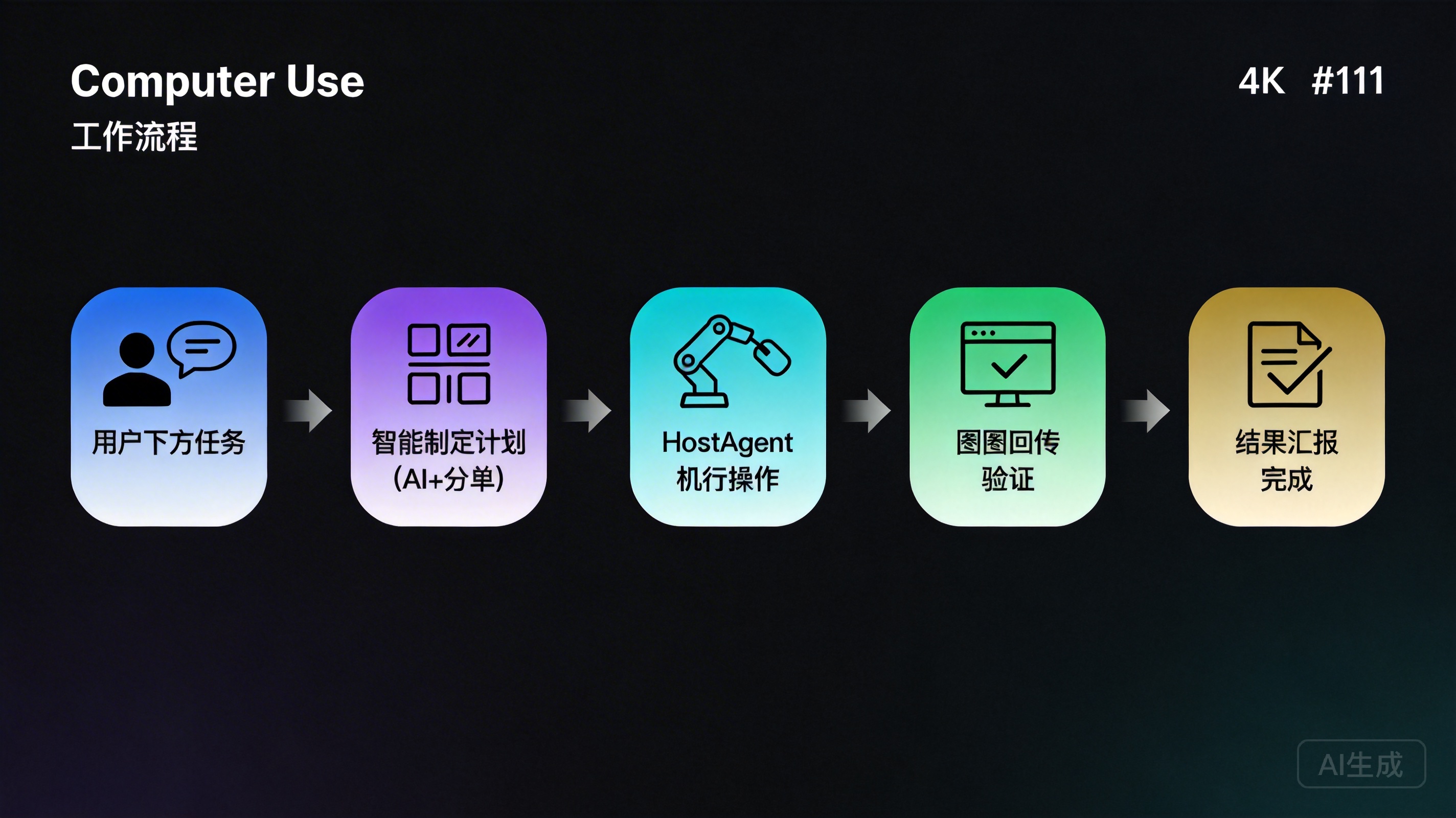
DesireCore’s Computer Use follows a clear five-step workflow:
Step 1: User issues a task. You describe the work to be done to the AI agent in natural language. For example: “Please enter the customer information from this Excel spreadsheet into the CRM system one by one.”
Step 2: The agent formulates an operation plan. The AI analyzes the task requirements and breaks the complex task into a series of specific operational steps. It considers which applications need to be opened, the order of operations, potential exceptions, and contingency plans.
Step 3: HostAgent executes operations. The HostAgent plugin installed on the target device receives operation commands from the agent and performs concrete actions on the device’s graphical interface — moving the mouse, clicking buttons, typing text, switching windows, and more.
Step 4: Screenshot feedback and verification. After each operation, HostAgent captures the current screen and sends it back to the agent. The agent uses visual recognition to confirm whether the operation was successfully executed and whether the current interface state matches expectations.
Step 5: Result reporting. Upon task completion, the agent reports the execution results to the user, including which operations were successfully completed, what issues were encountered, and the final execution status.
The core advantage of this workflow lies in closed-loop verification. Traditional RPA typically operates “blindly” — executing preset steps without confirming whether results are correct. Every operation in DesireCore is accompanied by visual verification, ensuring accuracy and reliability.
Why Not Just Use APIs?
One might ask: since APIs can directly manipulate data, why operate through the GUI? The answer is simple: not all systems provide APIs.
In real-world work scenarios, numerous internal enterprise systems, legacy applications, and third-party SaaS services either lack open APIs, have incomplete API functionality, or require complex approval processes for API access. GUI interfaces, however, are an interaction method that virtually all applications possess. Through Computer Use, DesireCore can operate any application with a graphical interface, free from API limitations, truly serving as a “universal connector.”
Furthermore, many operations are inherently GUI-level — for example, generating a report within a specific application and exporting it as PDF, or filling out a multi-step form on a webpage that requires dynamic interaction. For these operations, GUI automation is often more intuitive and reliable even when APIs exist.
Part 2: HostAgent Installation and Configuration Guide
What Is HostAgent?
HostAgent is the execution engine for DesireCore’s Computer Use capability. It is a lightweight client plugin that must be installed on the target device you wish to automate. Think of it as the AI agent’s “hands” on the target device — the agent’s brain resides in the cloud, but the actual mouse clicks, keyboard inputs, and other operations are performed locally through HostAgent.
HostAgent is designed with the following principles:
- Lightweight: Small installation package, low runtime resource consumption, no impact on normal device usage.
- Secure: All communications are encrypted, and operations follow the principle of least privilege.
- Cross-platform: Supports six major platforms — Windows, macOS, Linux, Android, iOS, and HarmonyOS.
Three Steps to Complete Setup
Regardless of your platform, HostAgent installation follows a unified three-step process:
Step 1: Download and Install HostAgent
Visit the DesireCore website’s download page and select the installation package corresponding to your target device’s operating system.
Windows:
- Download the
.exeinstaller - Double-click to run the installation wizard and follow the prompts
- After installation, HostAgent displays an icon in the system tray
- It is recommended to set HostAgent to start automatically at boot
macOS:
- Download the
.dmgdisk image - Open the image file and drag HostAgent to the “Applications” folder
- On first launch, macOS may warn “cannot verify the developer” — go to “System Settings > Privacy & Security” to allow it to run
- HostAgent will appear in the menu bar
Linux:
- Both
.deb(Debian/Ubuntu) and.rpm(Fedora/CentOS) packages are available - Install using the appropriate package manager:
sudo dpkg -i hostagent.deborsudo rpm -i hostagent.rpm - Start the service with
systemctl start hostagent - Enable auto-start with
systemctl enable hostagent
Android:
- Download the APK from the DesireCore website (Google Play version is also under review)
- Allow “Install from unknown sources” and proceed with installation
- Open the app and follow the initialization guide
iOS:
- Install via TestFlight or enterprise signing (App Store version under review)
- Open the app after installation and follow the initialization guide
HarmonyOS:
- Download from the DesireCore website or Huawei AppGallery
- Installation process is similar to Android
Step 2: Add Device in DesireCore and Enter Pairing Code
After installation, open HostAgent and you will see a pairing code (typically a 6-character alphanumeric combination). This code is single-use, designed to securely link your target device with the DesireCore platform.
- Log in to the DesireCore desktop client or web interface
- Navigate to the “Device Management” page
- Click “Add New Device”
- Enter the pairing code displayed by HostAgent
- Confirm device information (operating system, device name, etc.)
- Click “Complete Pairing”
After successful pairing, you will see this device in the device management list with its status showing “Online.” You can assign each device an easily identifiable name, such as “Office PC - Windows” or “Test Phone - Android.”
Step 3: Grant Necessary Permissions Based on Operating System
This is the most critical step. For HostAgent to perform GUI operations, it needs relevant permissions at the operating system level. Required permissions vary by platform:
Windows permissions:
- Administrator privileges: Some applications (especially those running as administrator) require HostAgent to also have admin privileges. It is recommended to run HostAgent as administrator for first use.
- Screen recording permission: Windows 10/11 typically allows screen capture by default.
- Accessibility permission: HostAgent leverages Windows UI Automation interfaces for more precise element recognition; the system usually grants access automatically.
macOS permissions:
- Accessibility: The most critical permission, allowing HostAgent to control mouse and keyboard. Go to “System Settings > Privacy & Security > Accessibility” and enable HostAgent.
- Screen Recording: Allows HostAgent to capture screen content. Go to “System Settings > Privacy & Security > Screen Recording” and enable HostAgent.
- Automation: macOS may prompt for authorization when specific applications need to be controlled — select “Allow.”
Linux permissions:
- X11/Wayland permission: Typically automatic under X11. Wayland environments require additional configuration — refer to the Wayland setup guide in DesireCore documentation.
- Input device permission: Ensure the HostAgent user is in the
inputgroup:sudo usermod -aG input $USER
Android permissions:
- Accessibility Service: Go to “Settings > Accessibility > HostAgent” and enable it. This is the core permission for GUI automation on Android.
- Overlay permission: Allows HostAgent to display a status indicator above other apps.
- Screen capture permission: The system will prompt for authorization on first use.
- Storage permission (if file operations are involved)
iOS permissions:
- iOS permission management is more restrictive. HostAgent operates through Accessibility APIs and Shortcuts integration.
- Configuration is completed under “Settings > Accessibility.”
HarmonyOS permissions:
- Similar to Android — grant Accessibility Service, overlay, and screen capture permissions.
- The HarmonyOS permission management interface path may differ slightly; follow system prompts.
Configuration Verification
After completing the three steps above, verify that the configuration is successful:
- Select the added device in DesireCore
- Enter a simple command in the dialog box, such as “open the calculator”
- Observe whether the target device successfully opens the calculator application
If the operation executes successfully, HostAgent has been properly installed, paired, and granted necessary permissions — you are ready to start using Computer Use.
Multi-Device Management
DesireCore supports managing multiple devices simultaneously. The device management page displays all paired devices with their online status, operating system information, and last activity time. When issuing tasks, you can specify which device to execute operations on, or create cross-device workflows — for example, exporting data from an ERP system on a Windows PC, processing it with specialized software on a macOS machine, and then sending the results via enterprise IM on an Android phone.
Part 3: Full Operational Capabilities — Mouse, Keyboard, Screenshots, and Application Control
DesireCore’s Computer Use provides a comprehensive set of GUI operation capabilities covering every type of action a human might perform when using graphical interfaces. Let us examine each category in detail.
Mouse Operations
The mouse is the foundational tool for GUI interaction. DesireCore supports the following mouse operations:
Click: The most basic operation for pressing buttons, selecting menu items, and activating input fields. The agent first locates the target element’s position through visual recognition, then instructs HostAgent to click at that position.
Double-click: Used for opening files, selecting words, and other scenarios requiring a double-click. The agent can determine when a double-click is needed instead of a single click.
Right-click: Opens the context menu for accessing shortcuts like copy, paste, and properties. The agent can recognize options within the context menu and perform subsequent operations.
Drag and drop: Moves elements from one position to another. Commonly used in file management, interface layout adjustment, and chart element manipulation. The agent precisely calculates drag start and end points.
Scroll: Scrolls pages or lists up, down, left, or right. When content extends beyond the visible area, the agent automatically determines the scroll direction and distance. This is particularly important for handling long lists, lengthy pages, or large tables.
Hover: Moves the mouse to a specific position without clicking, used to trigger tooltips, expand submenus, or activate hover effects.
Keyboard Input
Keyboard operations range from simple text entry to complex key combinations:
Typing: Entering text content in input fields, text editors, and similar locations. Supports input in Chinese, English, and other languages. For Chinese input, HostAgent can use the clipboard method to avoid input method compatibility issues.
Shortcut keys: Executing single shortcut key operations such as Tab (switch focus), Enter (confirm), Escape (cancel), and Delete.
Key combinations: Executing operations requiring multiple simultaneous key presses, such as Ctrl+C (copy), Ctrl+V (paste), Ctrl+S (save), Alt+Tab (switch window), and Ctrl+Shift+S (save as). The agent intelligently selects the appropriate key combination based on task requirements.
Special keys: Supports function keys (F1-F12), arrow keys, Page Up/Down, Home/End, and other special keys.
Screenshot Recognition
Screenshot recognition serves as Computer Use’s “eyes” and is the foundation for closed-loop verification:
Full-screen capture: Captures the entire screen for a global view and status overview.
Region capture: Captures a specific area of the screen for focused analysis of particular interface elements or regions.
Element recognition: Based on screenshot content, the AI identifies various interface elements — buttons, input fields, text labels, dropdown menus, checkboxes, radio buttons, table rows and columns, tabs, and more. This recognition does not rely on fixed pixel coordinates but on visual semantic understanding, enabling accurate element location even when interface layouts change.
OCR (Optical Character Recognition): Extracts text information from screenshots for reading data, error messages, and status prompts displayed on screen. This allows the agent to “read” on-screen content and make informed decisions.
State assessment: Analyzes screenshots to determine whether operations were successful — for example, whether a success message appeared after form submission, or whether the page changed as expected after a button click.
Application Operations
Beyond operating within applications, DesireCore can manage applications themselves:
Open applications: Launch specified desktop applications. The agent can open applications through the Start menu, Dock, desktop shortcuts, or command line.
Switch applications: Switch between multiple open applications using taskbar clicks or Alt+Tab.
Close applications: Close specified applications to free system resources. The agent confirms whether data needs to be saved before closing.
Window management: Adjust application window size and position, minimize, maximize, or restore windows. In multi-monitor environments, windows can be moved to specific displays.
Form Filling
Form filling is one of the most common GUI automation requirements, and DesireCore provides specialized optimization:
Auto-location: The agent identifies each field and its label within forms, automatically positioning the input cursor in the correct field. Even complex form layouts with irregularly distributed fields are accurately recognized.
Smart filling: Automatically selects the appropriate filling method based on field type:
- Text boxes: Direct text input
- Dropdown menus: Expand the option list and select the correct choice
- Checkboxes/radio buttons: Check or uncheck as needed
- Date pickers: Select the correct date through the date control
- File uploads: Select specified files for upload
Data validation: After filling, the agent checks for error prompts or validation warnings, automatically correcting issues or reporting them to the user.
File Operations
For operations involving the file system, DesireCore provides complete support:
File copying: Copy files from one location to another, accomplished through file manager GUI operations or keyboard shortcuts.
File moving: Move files to specified directories, supporting both drag-and-drop and cut-paste methods.
File renaming: Select a file and execute a rename operation, entering the new filename.
Batch operations: Perform the same operation on multiple files, such as batch renaming or batch moving to a specified folder.
Combining Operational Capabilities
The individual capabilities described above can be flexibly combined to form complex operation sequences. For example, “open Chrome browser > navigate to a URL > fill in the login form > click login > wait for page load > enter keywords in the search box > scroll through results > copy result data to Excel” — this complete operation sequence involves application operations, keyboard input, mouse clicks, form filling, scrolling, and file operations. DesireCore’s agent can automatically plan and execute such complex sequences.
Part 4: Intelligent Task Orchestration — From Single Operations to Complex Workflows
While individual GUI operations are useful, the real productivity gains come from orchestrating multiple operations into complete workflows. DesireCore’s intelligent task orchestration engine is designed precisely for this purpose.
Three Core Steps of the Orchestration Engine
Intent Recognition
When you describe a task to the agent, the orchestration engine first performs intent recognition. It analyzes your natural language description and extracts the following key information:
- Objective: What result do you want to achieve?
- Input data: What data or files need to be processed?
- Involved applications: Which applications does the task require?
- Constraints: Are there specific ordering requirements, time limitations, or quality standards?
For example, when you say “import this customer list from Excel into Salesforce, making sure each record’s phone number is in the correct format,” the orchestration engine identifies: the objective is data import, the input is a customer list in an Excel file, the involved applications are Excel and Salesforce, and the constraint is phone number format validation.
Task Decomposition
After identifying intent, the orchestration engine breaks the overall task into a series of fine-grained subtasks. Each subtask is an independently executable and verifiable unit. Decomposition considers:
- Dependencies: Which subtasks must execute sequentially, and which can run in parallel?
- Data flow: How does the output of one step become the input for the next?
- Error handling strategy: Should each subtask retry, skip, or abort the entire workflow upon failure?
- Checkpoints: At which key nodes should intermediate results be verified?
Continuing the example above, the orchestration engine might decompose it into:
- Open the Excel file
- Read the first row of customer data
- Validate the phone number format (mark and record if incorrect)
- Open the Salesforce new lead page
- Fill in the customer information form
- Submit the form and confirm successful save
- Return to Excel and move to the next row
- Repeat steps 2-7 until all rows are processed
- Generate a processing report (N successful, M failed, failure reason list)
Automatic Capability Matching
After decomposition, the orchestration engine automatically matches each subtask with the most appropriate execution capability. DesireCore offers not only GUI operation capabilities but also integrates multiple tools and capabilities, including:
- Computer Use (GUI operations): Used when tasks require graphical interface manipulation
- API calls: Preferred when the target application provides an API and the API approach is more efficient
- Data processing: Format conversion, validation, aggregation, and other data processing
- File processing: Reading, writing, and converting various file formats
- Notification delivery: Sending notifications via email, instant messaging, and other channels
The orchestration engine automatically selects the optimal capability combination. For example, reading Excel data preferentially uses file processing capabilities (direct file parsing), while filling forms in Salesforce uses Computer Use (as GUI manipulation is required). If Salesforce has API access configured, the system may choose between “API call” and “GUI operation” for maximum efficiency.
Two Execution Modes
DesireCore’s orchestration engine supports two execution modes to accommodate different automation scenarios:
Fixed Mode (SOP/Workflow)
Fixed mode is suitable for clearly defined, standardized processes that need to be executed repeatedly. In this mode:
- Pre-defined workflows: You can manually perform an operation once, and the system records the entire operation sequence, codifying it as a standard operating procedure (SOP).
- Stable and reliable: Each execution strictly follows the pre-defined steps, ensuring consistent results.
- Schedulable: Codified workflows can be triggered on a schedule, by events, or manually.
- Optimizable: Through data feedback from multiple executions, the workflow’s efficiency and accuracy can be continuously improved.
Fixed mode is particularly suitable for:
- Routine tasks that need to be repeated daily/weekly
- Compliance tasks with strict operational requirements
- Team collaboration tasks where multiple people follow the same process
- Critical business processes (such as financial reconciliation, order processing)
Flexible Mode (AI-Driven Orchestration)
Flexible mode leverages AI’s intelligent judgment to dynamically plan operational steps based on real-time conditions. In this mode:
- Dynamic planning: The agent adjusts its operational strategy in real-time based on the current screen state and task progress.
- Exception handling: When unexpected situations arise, the AI can autonomously determine how to respond without needing pre-defined exception paths.
- Context awareness: The agent adjusts subsequent operations based on the results of previous steps, achieving truly adaptive execution.
- Natural language driven: The entire process requires only a natural language description of the task objective, without pre-orchestrated workflow steps.
Flexible mode is particularly suitable for:
- New tasks being executed for the first time (no established standard process)
- Judgment-based tasks requiring different handling based on data content
- Unstructured tasks involving complex decision-making
- Exploratory tasks (uncertain optimal execution path)
Full Status Tracking
Regardless of the execution mode, DesireCore provides comprehensive status tracking:
Real-time progress display: You can check the current task’s execution progress at any time — how many steps have been completed, which step is currently executing, and estimated remaining time.
Timeout alerts: If a step’s execution time exceeds expectations, the system automatically issues an alert. You can choose to continue waiting, skip the current step, or abort the entire workflow.
Automatic reassignment: When a step fails, the system can automatically retry based on preset strategies or reassign the task to another device for execution.
Completion summary: After task completion, the system generates a detailed execution report including each step’s execution time, success/failure status, volume of data processed, and more. These reports are invaluable for subsequent workflow optimization.
Part 5: Case Study 1 — Bulk CRM Data Entry
Let us demonstrate the complete DesireCore GUI automation workflow through a concrete case study.
Scenario Description
A company’s sales team receives a batch of new prospect information each week, stored in an Excel spreadsheet containing fields such as customer name, company name, job title, phone number, email, and source channel. The sales assistant needs to enter each record into the company’s CRM system (Salesforce in this example).
Approximately 200-300 new records arrive each week, with each record taking 2-3 minutes to enter manually (opening the new record page, filling in each field, selecting dropdown options, saving). The entire process requires 8-15 hours. This is not only extremely time-consuming but also error-prone — rows can be miscopied, dropdown selections can be wrong, and phone number formats may be inconsistent.
Preparation
Before beginning automation, the following preparations are needed:
- Confirm device connection: Ensure the computer with HostAgent installed is paired with DesireCore and online.
- Prepare the data file: Ensure the Excel file is saved at a specified location on the target computer with standardized data format (clear column headers, no merged cells).
- Confirm CRM login status: Ensure Salesforce is logged in, or have login credentials ready.
- Field mapping confirmation: Clearly define which Excel column maps to which CRM field.
Execution Process
In DesireCore’s chat interface, enter the task description:
“Please enter the customer data from ‘New Customer List 0402.xlsx’ on the desktop into the ‘Leads’ module in Salesforce, one by one. The Excel columns are: A-Name, B-Company, C-Title, D-Phone, E-Email, F-Source Channel. Phone numbers must be in 11-digit format. If a record has issues, skip it and mark it.”
The agent executes the following operation sequence:
Phase 1: Data Preprocessing
- Open the Excel file on the desktop
- Read the table data and count total rows
- Pre-check phone number column format
- Report to user: “Detected 256 records total, 12 with abnormal phone number format (not 11 digits), these will be skipped and marked during entry. Confirm to proceed?”
Phase 2: Record-by-Record Entry
For each valid record:
- Switch to the Salesforce page in Chrome
- Click the “New Lead” button
- Wait for the new record form to load
- Enter the customer name in the “Name” field
- Enter the company name in the “Company” field
- Enter the job title in the “Title” field
- Enter the phone number in the “Phone” field
- Enter the email in the “Email” field
- Select the corresponding source channel from the “Source” dropdown
- Click the “Save” button
- Verify save success via screenshot (check for success message or detail page)
- If save fails, record error information and capture screenshot
- Switch back to Excel, add status marker to the current row (“Entered” or “Failed + Reason”)
- Move to the next row
Phase 3: Result Reporting
After processing all records, the agent generates an execution report:
“Bulk entry task completed. Processing summary:
- Total records: 256
- Successfully entered: 241
- Skipped due to format issues: 12 (phone number not 11 digits)
- Entry failed: 3 (2 rejected by Salesforce due to duplicate email, 1 due to special characters in company name)
- Total time: 1 hour 47 minutes
- Excel file has been updated with entry status markers
Failed record details have been summarized in Sheet2 of the Excel file.”
Efficiency Comparison
| Metric | Manual Operation | DesireCore Automation |
|---|---|---|
| Time for 256 records | ~10 hours | ~1.8 hours |
| Error rate | 3-5% (fatigue-induced) | <1% (format validation + visual verification) |
| Human involvement | 100% (fully manual) | 5% (issue command + review report) |
| Repeatability | Depends on operator condition | Consistent and stable |
Advanced Optimization: Codifying as SOP
If this task needs to be performed weekly, you can codify the workflow as a standard process:
- After task completion, select “Save as Workflow”
- Set trigger conditions (e.g., “auto-execute every Monday at 9:00 AM” or “trigger when a new Excel file appears in the designated folder”)
- Configure parameterized options (such as Excel file path, CRM module name, which can be specified for each execution)
- Set completion notification method (email, Slack, Teams, etc.)
Thereafter, the entire entry process runs automatically — you only need to review the execution report after receiving the completion notification.
Part 6: Case Study 2 — Cross-Application Data Transfer (Backend > Excel > Email)
Scenario Description
The operations team needs to export the previous day’s sales data from the company’s backend management system daily, organize and perform pivot analysis in Excel, then send the analysis results to management via email. This workflow involves three different applications — the web backend system, Excel, and Outlook/email client — requiring data to flow and be processed across them.
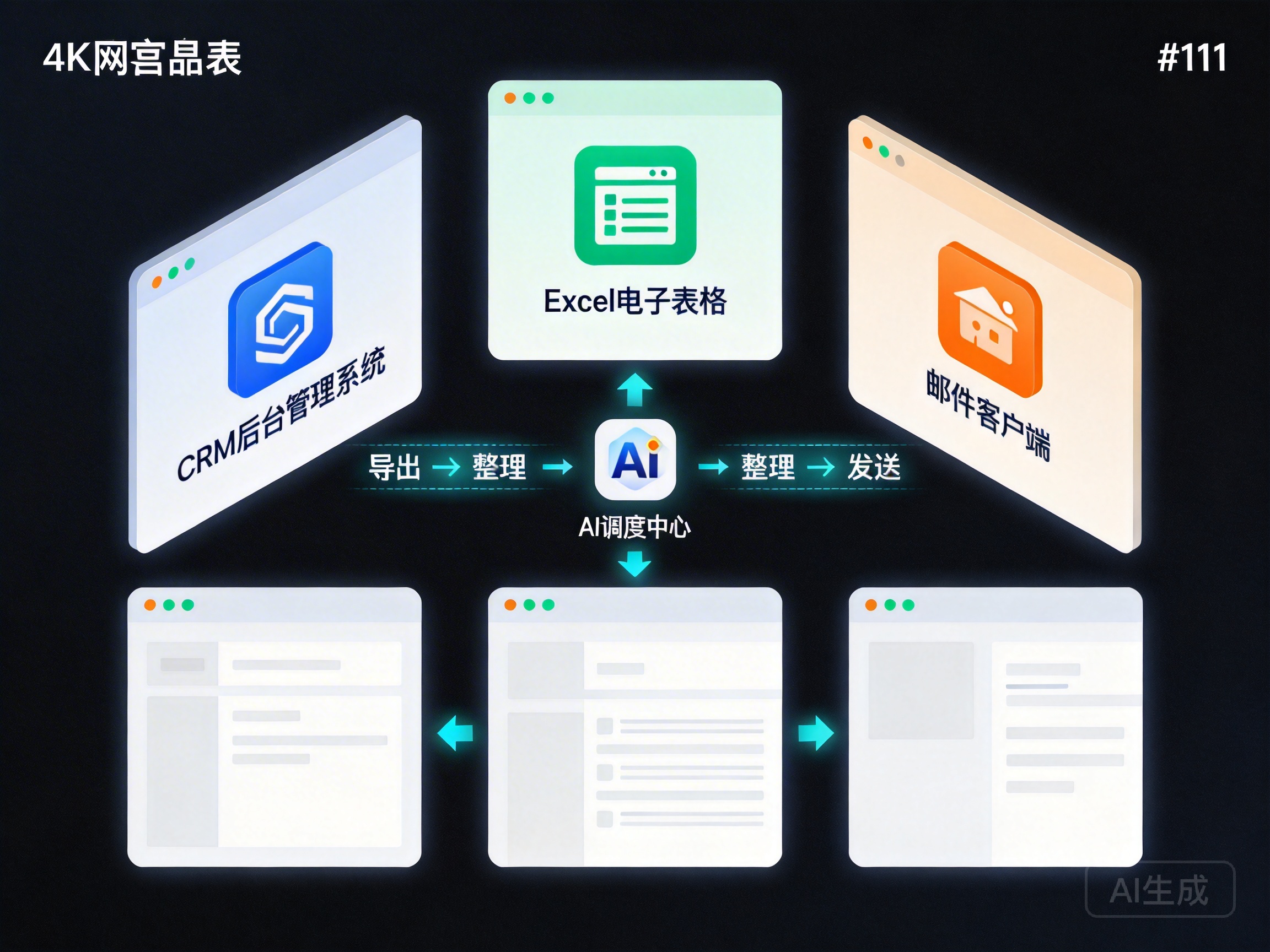
Manually executing this workflow typically takes 30-45 minutes, and since it is a daily mandatory task, it often becomes the first “chore” operations staff face upon arriving at work each morning.
Task Description
In DesireCore, enter:
“Automatically execute the following task daily at 8:30 AM:
- Log in to the company backend system (address: admin.company.com), navigate to the ‘Sales Data’ module, and export yesterday’s sales detail report as an Excel file
- Open the exported Excel file, create a pivot table summarizing sales amount and order count by product category, and generate a bar chart
- Send the prepared Excel file as an attachment via Outlook to the leadership distribution group (leadership@company.com), with the subject ‘Daily Report: [Date] Sales Data Analysis,’ and include a key data summary in the email body”
Detailed Execution Flow
Phase 1: Backend Data Export
- Open Chrome browser
- Navigate to admin.company.com
- If login is required, enter username and password (provided by user on first run; securely stored credentials used subsequently)
- Navigate to the “Sales Data” module
- Set the date filter to “yesterday”
- Click the “Export” button
- Select Excel as the export format
- Wait for the file download to complete
- Capture screenshot confirming file downloaded to the “Downloads” folder
Phase 2: Excel Data Processing
- Open the downloaded Excel file
- Verify data integrity (row count, correct column headers)
- Select the data range
- Insert a pivot table into a new worksheet
- Set the row field to “Product Category”
- Set value fields to “Sales Amount” (sum) and “Order Count” (count)
- Sort by sales amount in descending order
- Select the pivot table and insert a bar chart
- Set chart title and formatting
- Return to the pivot table, extract key data: total sales, total orders, Top 3 product categories and their sales
- Save the file, rename to “Sales Daily Report_[Date].xlsx”
Phase 3: Email Sending
- Open Outlook
- Click “New Email”
- Enter leadership@company.com in the recipient field
- Enter the email subject: “Daily Report: 2026-04-01 Sales Data Analysis”
- Compose the data summary in the body:
Dear Leadership Team,
Below is the sales data summary for April 1, 2026:
- Total sales: $178,432
- Total orders: 456
- Day-over-day change: +12.3%
- Top 3 product categories:
- Smart Hardware $66,220 (37%)
- Software Services $49,961 (28%)
- Accessories & Consumables $33,902 (19%)
Please see the attached file for detailed analysis.
- Add the Excel file as an attachment
- Click “Send”
- Capture screenshot confirming email sent successfully
The Key to Cross-Application Coordination
The core challenge of this case study is data flow across three applications. When traditional RPA handles cross-application scenarios, it requires separate operation scripts for each application, relying on fixed file paths or the clipboard to transfer data. If any link encounters an unexpected situation (download path changes, Excel version differences causing menu position shifts, Outlook interface updates), the entire workflow collapses.
DesireCore’s AI agent, with its visual comprehension capabilities, identifies the current interface state in real-time after each operation step, automatically adapting to interface changes. For example:
- If the backend system’s export button has moved, the AI can locate it through text recognition
- If a different Excel version changes the “Insert Pivot Table” menu path, the AI adapts
- If Outlook’s interface has been updated, the AI similarly identifies the new “New Email” button
This adaptive capability is the core advantage of AI-native automation over traditional RPA.
Scheduled Execution and Exception Handling
After setting this workflow as a scheduled task, DesireCore’s scheduling system automatically triggers execution at 8:30 AM daily. If exceptions occur during execution, the system handles them as follows:
- Backend system inaccessible: Wait 5 minutes and retry, up to 3 times. If still failing, notify the operations staff: “Backend system access error, today’s daily report requires manual processing.”
- Empty data export: Possibly a holiday with no sales data. The system sends an email notification: “No sales data yesterday; daily report will not be sent.”
- Outlook not logged in: Attempt automatic login; if two-factor authentication is required, notify the user for manual handling.
Part 7: Case Study 3 — Scheduled GUI Inspection and Anomaly Alerts
Scenario Description
The IT operations team needs to regularly check multiple monitoring dashboards (such as Grafana, Zabbix, and company-built operations screens) to confirm that all metrics are normal and no alerts are present. This work is typically performed manually by on-duty staff every 1-2 hours: opening each monitoring page, checking key metrics one by one, confirming whether any anomaly alerts exist, and recording and escalating any findings.
While each inspection session is relatively short (about 10-15 minutes), the high-frequency repetition accumulates to consume significant human resources. During overnight shifts, the reliability of manual inspections also decreases due to fatigue.
Task Configuration
Configure a scheduled inspection task in DesireCore:
“Execute the following GUI inspection task every hour:
- Open Chrome, visit the Grafana monitoring dashboard (grafana.company.com/dashboard/main)
- Check if CPU utilization exceeds 80%
- Check if memory utilization exceeds 85%
- Check if disk utilization exceeds 90%
- Check for any red alert indicators
- Switch to the Zabbix page (zabbix.company.com)
- Check if the ‘unacknowledged problems’ list is empty
- If there are unacknowledged problems, record the details
- Switch to the company operations screen (ops-screen.company.com)
- Check if all service availability indicators are green
- Check if all response times are within thresholds
If any anomalies are found:
- Capture the anomaly screen
- Send an alert to the operations group chat via enterprise messaging (including anomaly description and screenshot)
- For severe anomalies (such as service unavailability), additionally phone notify the on-duty lead”
Inspection Execution Details
Steps for each inspection round:
-
Grafana check:
- Open the Grafana main monitoring dashboard
- Capture a full-screen screenshot
- Read current CPU, memory, and disk utilization values via OCR
- Compare against defined thresholds
- Scan the page for red/orange alert icons
- Record check results
-
Zabbix check:
- Navigate to the Zabbix problem list page
- Read the count of “unacknowledged problems”
- If the count is non-zero, read each problem’s name, severity, duration, and scope of impact
- Record check results
-
Operations screen check:
- Navigate to the operations screen page
- Check the color of each service status indicator
- Read response time values
- Record check results
-
Result processing:
- If all checks are normal: log the inspection record and wait for the next round
- If anomalies are found:
- Generate an anomaly report (including screenshots, anomalous metrics, potential impact)
- Send an alert message via enterprise messaging API or GUI operation
- Determine whether to trigger a phone notification based on severity
Inspection Report Examples
Normal inspection log:
Inspection time: 2026-04-02 14:00:00 Inspection result: All normal
- Grafana: CPU 45%, Memory 62%, Disk 71% — all within thresholds
- Zabbix: Unacknowledged problems: 0
- Operations screen: All services green, response times normal
Anomaly alert message:
[ALERT] Anomaly detected during inspection — 2026-04-02 15:00:00
The following anomalies were found during scheduled inspection:
- Grafana — Server prod-web-03 CPU utilization at 94% (threshold 80%), sustained for 23 minutes
- Zabbix — 2 unacknowledged problems:
- [High] prod-db-01 disk I/O latency anomaly (triggered at 15:02)
- [Medium] prod-cache-02 connection count nearing limit (triggered at 14:47)
Anomaly screenshots are attached. Please address promptly.
Value of Automated Inspection
| Aspect | Manual Inspection | DesireCore Automated Inspection |
|---|---|---|
| Frequency | Once every 1-2 hours (human limitation) | As frequent as every 5 minutes |
| Overnight reliability | Affected by fatigue, prone to omissions | Consistent 24/7 execution |
| Response speed | 5-10 minutes from detection to escalation | <1 minute from detection to alert |
| Inspection granularity | Depends on personnel experience, may miss details | Systematic item-by-item checking per defined rules |
| Historical traceability | Depends on manual records, may be incomplete | Automatic archiving of every inspection round |
| Labor cost | Requires dedicated on-duty personnel | Frees human resources for higher-value work |
Part 8: Security Mechanisms — Whitelists, Human Gates, and Audit Logs
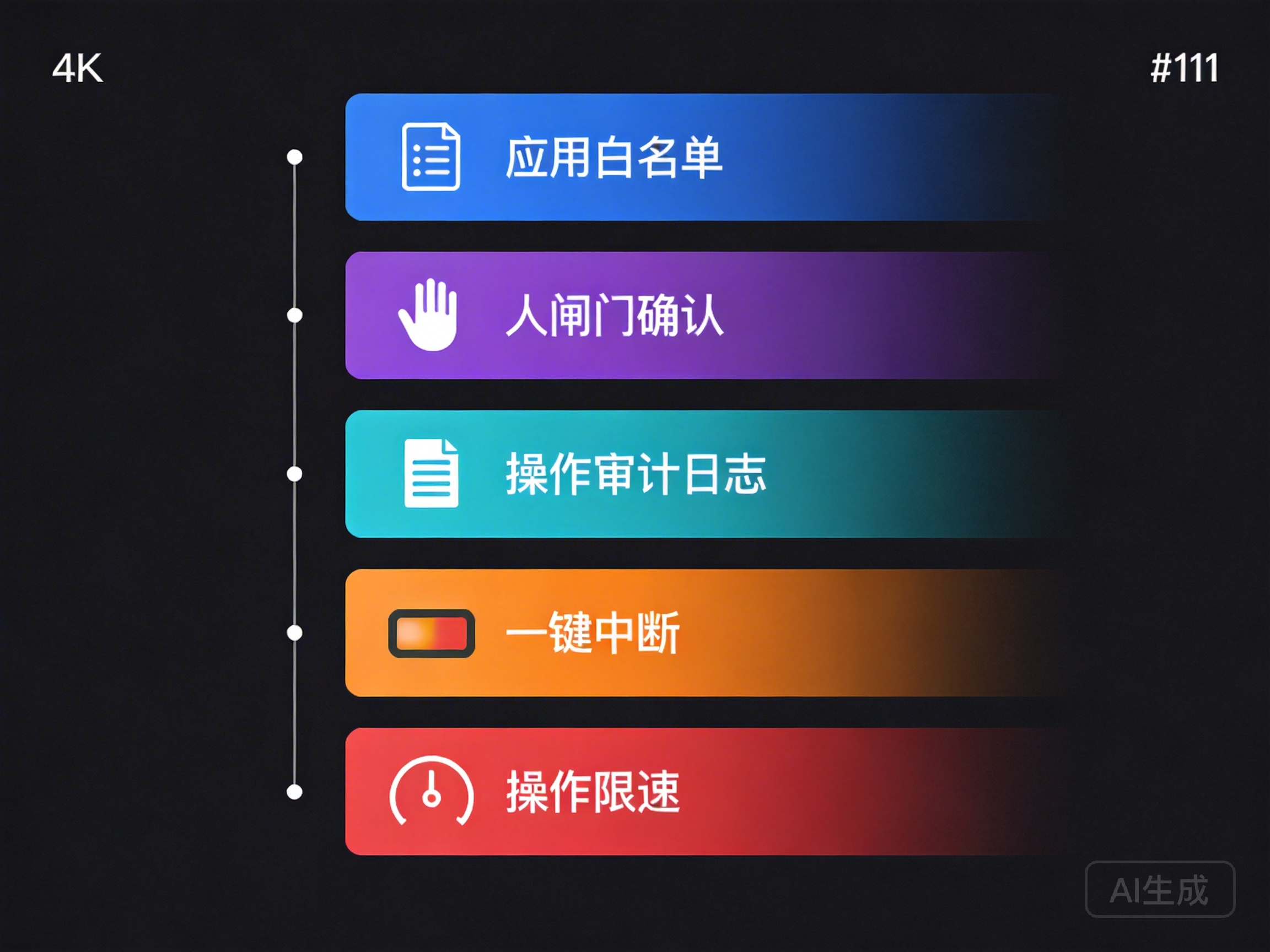
Allowing an AI agent to operate your computer and phone naturally raises security as the foremost concern. DesireCore designed Computer Use with security as a core consideration, establishing a multi-layered security protection system.
Application Whitelist Control
Not all applications are suitable for automated operation. DesireCore provides an application whitelist mechanism for precise control over which applications the AI agent can operate:
Whitelist configuration:
- Configure the list of permitted applications for each device on the device management page
- Only applications on the whitelist will respond to agent operation commands
- Even if an agent requests to operate a non-whitelisted application, HostAgent will refuse execution
Typical configuration example:
- Allowed: Chrome, Excel, Outlook, company CRM system, ERP system
- Blocked: Online banking applications, password managers, system settings (partial), antivirus software
Dynamic management:
- Whitelists can be adjusted at any time
- Support time-based whitelist policies (e.g., allow CRM operations during work hours, only inspection operations outside work hours)
- Support per-workflow whitelists (each workflow can only operate its required applications)
Human Gate Confirmation Mechanism
For sensitive operations, DesireCore introduces the “Human Gate” confirmation mechanism. This is conceptually similar to safety gates in industrial production — before executing critical operations, explicit human confirmation must be obtained.
Trigger conditions: The human gate does not trigger at every operation step — that would defeat the purpose of automation. It triggers only in the following situations:
- Financial operations: Involving payments, transfers, order confirmations, and other financial actions
- Data deletion operations: Executing irreversible operations like data deletion or record clearing
- Permission change operations: Modifying user permissions, role assignments, and other security-sensitive operations
- External communication operations: Sending emails or messages to external contacts (configurable)
- System configuration changes: Modifying system settings, network configurations, or other changes that could affect service stability
- Custom rules: You can define which operations require human gate confirmation
Confirmation flow:
- The agent pauses when reaching a step requiring confirmation
- A confirmation request is sent to the user, including:
- Description of the operation to be performed
- The operation’s target and expected effect
- Data or objects involved in the operation
- Current screen screenshot
- After review, the user selects:
- Confirm execution: Proceed with the operation
- Reject execution: Skip the operation; subsequent workflow behavior depends on policy
- Modify and execute: Adjust operation parameters before execution
- The confirmation action is recorded in the audit log
Human gate flexibility:
- Confirmation timeout can be set (e.g., auto-skip if unconfirmed within 5 minutes)
- Specific approvers can be designated (not necessarily the task initiator — could be a supervisor or security reviewer)
- “Batch confirmation” mode is available (for similar operations, confirm once and subsequent similar operations execute automatically)
Comprehensive Operation Audit Logs
Every Computer Use operation is fully recorded in audit logs, ensuring traceability and compliance:
Log contents:
- Timestamp: Precise time of operation execution
- Operator: Identity of the user who initiated the task
- Target device: Which device the operation was executed on
- Operation type: Mouse operation, keyboard input, application operation, etc.
- Operation details: Specific operation content (e.g., “entered ‘John Smith’ in Salesforce Name field”)
- Screenshot archive: Before and after screenshots of the operation
- Execution result: Whether the operation succeeded; if failed, the failure reason
- Human gate records: If a human gate was triggered, records the approver, confirmation time, and outcome
Log uses:
- Compliance auditing: Meets industry compliance requirements (e.g., regulated industries like finance and healthcare)
- Troubleshooting: When automation workflows encounter anomalies, logs pinpoint the exact step and cause
- Workflow optimization: Analyzing execution time and success rate data to identify optimization opportunities
- Security traceability: In the event of a security incident, audit logs provide a complete evidence chain
Log management:
- Searchable by time range, device, user, operation type, and other dimensions
- Exportable in CSV and JSON formats
- Configurable retention policies (e.g., retain for 90 days)
- Critical operation logs can be set as non-deletable
One-Click Interrupt
At any time, you can use the one-click interrupt feature to immediately stop all AI agent operations on the target device:
- Keyboard shortcut interrupt: Press the designated shortcut in the DesireCore client (default
Ctrl+Shift+Esc) - Button interrupt: Click the “Emergency Stop” button on the task execution interface
- Device-side interrupt: Select “Stop All Operations” from HostAgent’s tray icon on the target device
- Remote interrupt: Remotely stop operations on any device via the DesireCore mobile app
After interruption, the agent immediately ceases all operations and reports the current execution status and completed steps, helping you decide on next steps.
Rate Limiting Protection
To prevent the AI agent’s rapid operation speed from causing issues with target applications (such as triggering anti-bot mechanisms or exceeding API rate limits), DesireCore includes built-in rate limiting:
- Default rate limiting: Reasonable intervals between mouse clicks and keyboard inputs (simulating human operation cadence)
- Custom rate limiting: Different operation speeds can be set for different applications
- Intelligent rate limiting: The AI automatically adjusts operation cadence based on application response speed — if a page loads slowly, it waits longer before the next operation
- Rate alerts: When the operation frequency approaches an application’s threshold, the system automatically slows down and issues a warning
Part 9: Mobile Automation — Android/iOS/HarmonyOS
With the rise of mobile work, an increasing number of workflows involve mobile device operations. DesireCore’s Computer Use covers not only desktop platforms but also fully supports mobile automation.
Unique Challenges of Mobile Automation
Compared to desktop environments, mobile automation faces several unique challenges:
- Small screen size: Mobile devices have limited screen space, requiring frequent scrolling to view complete content
- Touch interaction: Phones use touch rather than mouse input, with different interaction patterns (tap, long press, swipe, pinch-to-zoom)
- Strict system permissions: Especially on iOS and HarmonyOS, with numerous restrictions on background operations
- Variable network environments: Mobile devices may switch between WiFi and cellular networks
- Notification interference: Various notification pop-ups on phones can disrupt automation operations
Android Automation
Android is the most mature platform for mobile automation. DesireCore’s HostAgent achieves comprehensive GUI operation capabilities through Android’s AccessibilityService:
Supported operations:
- Touch input: Single-finger tap, long press, swipe (all directions), two-finger pinch
- Text input: Via clipboard method (bypassing input method compatibility issues)
- Application management: Open, switch, and close applications
- Notification handling: Read and respond to notifications
- System operations: Adjust settings, connect to WiFi, etc.
Typical scenarios:
- Batch-approving pending items in enterprise apps
- Updating customer follow-up status in mobile CRM
- Sending standardized replies in instant messaging apps
- Completing regular check-in and attendance tasks on mobile
Notes:
- Android 8.0 or above recommended
- Disable battery optimization to prevent the system from killing HostAgent
- It is recommended to keep the screen on (enable “Developer Options > Stay Awake” in settings)
iOS Automation
iOS’s closed ecosystem imposes more restrictions on automation compared to Android, but DesireCore still achieves a viable automation solution through multiple technical approaches:
Implementation methods:
- Basic interface operations via iOS Accessibility APIs
- System-level operations via iOS Shortcuts integration
- For jailbroken devices, more complete operation capabilities are available
Supported operations:
- Touch input: Tap, swipe, long press
- Application switching: Via accessibility shortcut methods
- Text input: Via clipboard method
- Select system operations: Implemented through Shortcuts
Limitations and solutions:
- iOS does not support background screenshots (limitation) > DesireCore obtains visuals through the screen recording interface (solution)
- iOS restricts cross-application operations (limitation) > Achieved through accessibility and Shortcuts combinations (solution)
- iOS permission dialogs require manual confirmation (limitation) > After initial authorization, subsequent operations proceed automatically (solution)
HarmonyOS Automation
As an emerging mobile operating system from Huawei, DesireCore provides native support for HarmonyOS:
Technical foundation:
- Based on HarmonyOS’s accessibility framework (AccessibilityExtensionAbility)
- Supports HarmonyOS 4.0 and above
- Compatible with both native HarmonyOS applications and Android-compatible applications
Distinctive features:
- Leverages HarmonyOS’s distributed capabilities for seamless cross-device task handoff
- Supports HarmonyOS Atomic Services
- Potential integration with Huawei’s Celia assistant
Mobile Case Study: Automating Repetitive In-App Tasks
Scenario: An e-commerce operations staff member needs to modify promotional prices for 50 products daily in a product management app.
Manual process: Open app > search for product > enter edit page > modify price > save > return to list > search for next product… Repeat 50 times, taking approximately 1.5 hours.
DesireCore automation:
- Prepare data containing product SKUs and new prices (can be an Excel or text file)
- Create a task in DesireCore:
“Please modify product prices in the product management app on my phone according to the following list: [Product SKU] > [New Price] SKU001 > 199.00 SKU002 > 299.00 … Confirm successful save after each modification. If a product cannot be found, skip and mark it.”
- The agent automatically executes on the phone:
- Open the product management app
- Enter the product SKU in the search box
- Tap the search result to enter product details
- Tap the “Edit” button
- Locate the price field
- Clear the existing price and enter the new price
- Tap “Save”
- Verify save success via screenshot
- Return to the list and process the next product
- Generate a modification report upon completion
Time required: Approximately 20 minutes (machine operation speed is consistent and fatigue-free)
Desktop and Mobile Collaboration
One of DesireCore’s most powerful capabilities is supporting collaborative workflows across desktop and mobile platforms. For example:
- Export data from a database on a Windows PC
- Generate reports using specialized software on a macOS machine
- Send the reports to clients via enterprise messaging on an Android phone
- Annotate approval comments using Apple Pencil on an iOS iPad
This cross-platform, cross-device collaboration capability makes DesireCore not merely a point automation tool but a true “universal digital assistant.”
Part 10: Pairing with Super Document — The Complete Document Processing Loop
Computer Use solves the GUI operation automation problem, but in many workflows, document processing is an indispensable component. DesireCore’s “Super Document” feature is designed specifically for document scenarios, and when used in conjunction with Computer Use, it creates a complete loop from data acquisition to document output.
What Is Super Document?
Super Document applies code review mechanisms to document writing, with the core philosophy of “AI writes for you, you review.” Unlike traditional AI writing tools, Super Document does not simply generate a complete document for you to “accept or reject wholesale.” Instead, like code review, it marks each modification individually, provides choices, and includes rationale.
Core workflow:
- AI drafts/revises: You provide a document draft or requirements description, and the AI generates or modifies the document content.
- Individual change marking: Every change is clearly marked — added content, deleted content, modified content — all visible at a glance.
- Three action options: For each change, you can:
- Accept: Agree with the change and keep the AI’s suggestion
- Reject: Disagree with the change and keep the original text
- Edit: Further adjust based on the AI’s suggestion
- Change rationale: The AI provides a rationale for each change, explaining why it was made (e.g., “grammatical inconsistency here,” “this description is not precise enough,” “recommend using more professional terminology”).
- Git-style version history: All changes and review records are preserved, and you can revert to any historical version at any time.
Computer Use + Super Document Collaboration Scenarios
When Computer Use and Super Document are combined, they enable the following powerful workflows:
Scenario 1: Automated data collection + intelligent report generation
- Computer Use automatically collects data from multiple systems (e.g., exporting sales data from ERP, HR data from the HR system, cost data from the financial system)
- Super Document automatically generates a monthly business analysis report based on the collected data
- The user reviews AI-generated analysis conclusions and recommendations through the review interface, confirming or modifying each point
- Computer Use sends the final version of the report to management via email
In this entire workflow, the human only needs to perform the “review” step — data collection, report generation, and email sending are all handled automatically by AI.
Scenario 2: Contract review and revision
- The user uploads a contract document
- Super Document automatically reviews contract terms, marking potential risk points and suggested clause revisions
- The user reviews each marked item, accepting, rejecting, or modifying the AI’s suggestions
- After review is complete, Computer Use automatically opens the company’s contract management system, uploads the revised contract, and fills in the approval form
Scenario 3: Multilingual document translation and proofreading
- The user provides a Chinese document
- Super Document generates an English translation with paragraph-by-paragraph comparison marking
- The user reviews translation quality, modifying unsatisfactory paragraphs
- Computer Use uploads the translated document to the company’s document management system, updating the multilingual version
Practical Value of Version History
Super Document’s Git-style version history is more than just “being able to roll back.” It brings an entirely new experience to document collaboration:
- Change tracking: Every modification is recorded, clearly showing “who made what change and when.”
- Version comparison: Any two versions can be compared to see their differences and understand the document’s evolution.
- Review chain: The complete review record forms a review chain, satisfying compliance requirements (such as ISO document control standards).
- Rollback capability: If the latest modifications prove problematic, you can roll back to a previous stable version with one click.
- Branch collaboration: Multiple people can make parallel modifications based on different versions of the same document, then merge the results.
Super Document vs. Traditional AI Writing Tools
| Feature | Traditional AI Writing Tools | DesireCore Super Document |
|---|---|---|
| Output method | One-time complete document generation | Individual change marking |
| User control | Accept or reject wholesale | Accept/reject/edit per change |
| Change transparency | Opaque (unclear what changed) | Fully transparent (every change marked) |
| Change rationale | None | Rationale provided for each change |
| Version management | None or simple undo | Git-style full version history |
| Automation integration | Typically unsupported | Seamless collaboration with Computer Use |
Conclusion: The Future from Manual to Intelligent Automation
Through this comprehensive guide, we can see that DesireCore’s GUI desktop automation is not a simple replacement for traditional RPA but a paradigm-level upgrade. Let us review the key takeaways:
Core Technical Breakthroughs
- AI-native visual understanding: No longer relying on fixed pixel coordinates or element selectors, but understanding interface semantics through AI visual capabilities and adapting to interface changes.
- Natural language driven: No scripts or code needed — describe the task in natural language for automatic execution.
- Closed-loop verification: Every operation is accompanied by screenshot verification to ensure execution accuracy.
- Intelligent exception handling: Capable of autonomous judgment and response when encountering unexpected situations, no longer fragile enough to stop at the first error.
- Cross-platform coverage: Comprehensive support across six major platforms — Windows, macOS, Linux, Android, iOS, and HarmonyOS.
Real-World Application Value
From the three case studies in this article, we can see that DesireCore’s GUI automation delivers significant efficiency improvements across different scenarios:
- Bulk CRM data entry: Reduced from 10 hours to 1.8 hours, error rate dropped from 3-5% to below 1%
- Cross-application data transfer: Transformed from 30-45 minutes of manual work to fully automated scheduled execution
- Scheduled GUI inspection: Shifted from manual on-duty staff dependence to 24/7 automated monitoring with minute-level response times
Security and Control
DesireCore has not sacrificed security in pursuit of automation. Five major security mechanisms — application whitelists, human gate confirmation, comprehensive audit logs, one-click interrupt, and rate limiting — ensure the AI agent always operates under your control. The human gate mechanism in particular provides additional security for sensitive operations, letting you enjoy the convenience of automation without worrying about loss of control.
Complete Toolchain
Computer Use does not exist in isolation. Combined with the intelligent task orchestration engine, individual operations can be organized into complex workflows. Combined with Super Document, data collection and document processing form a complete loop. Two execution modes — fixed mode (SOP/Workflow) and flexible mode (AI-driven orchestration) — accommodate varying automation needs.
Looking Ahead
GUI desktop automation is at an exciting stage of development. As AI visual understanding and reasoning capabilities continue to advance, we can anticipate:
- More complex task handling: AI will be able to handle advanced tasks requiring multi-step reasoning and complex judgment, not just mechanical repetitive operations.
- More natural human-AI collaboration: Collaboration between humans and AI will become more fluid, with AI proactively seeking human guidance when needed and making independent decisions when confident.
- Broader platform support: Beyond the six currently supported platforms, future expansion to additional device types and operating systems is likely.
- Stronger learning capabilities: AI will be able to learn from user operation habits, automatically optimizing operational strategies and workflows.
- Deeper system integration: Integration with enterprise internal systems will grow increasingly deep, expanding from GUI operations to hybrid API calls, direct database connections, and other approaches.
DesireCore is leading this transformation from manual to intelligent automation. Whether you are an individual user needing to automate daily repetitive tasks or an enterprise team looking to boost operational efficiency, DesireCore’s Computer Use capability is well worth trying.
Starting today, let an AI agent become your digital assistant, freeing your time and energy for work that truly requires human creativity and judgment. This is not merely an efficiency improvement — it is a fundamental transformation of how we work.
This article is based on the latest version of DesireCore. For more information or to get started, visit the DesireCore website to download the client, or consult the product documentation for detailed usage guides.